Hey there, it’s Sam from the bar-type capacitive touch screen team here. I’ve spent the last six years working with these sleek, slim touch screens—you know, the ones that go into POS systems, industrial kiosks, gaming control panels, and even high-end medical workstations—and I can’t tell you how many times I’ve gotten a call from a customer panicking because their screen is glitching: a button isn’t registering taps, there’s a weird lag when they swipe, or it’s completely unresponsive mid-shift. More often than not, the culprit isn’t a broken screen itself—it’s outdated or misconfigured drivers. Bar Type Capacitive Touch Screen

Last month, a client who runs a chain of 12 coffee shops hit me up at 8 a.m. local time, frantic. Their new self-order kiosks with our bar-type touch screens were failing left and right on a Saturday—their busiest day. I hopped on a Zoom call, walked their IT team through a quick driver check, and we had most of the kiosks back up and running in 20 minutes. The remaining ones? A quick driver update fixed the last of the lag. That’s the thing about these bar-type capacitive touch screens: they’re built for reliability, but drivers are the unsung backbone that ties the screen hardware to the device it’s mounted on—whether that’s a Windows-based POS, a Linux industrial controller, or even a macOS-driven retail monitor. Skip updating drivers, and even the most well-built touch screen will feel like a cheap throwaway.
Let’s break this down like I’d walk a new partner through it—no jargon, no tech mumbo jumbo, just real, actionable steps I’ve tested hundreds of times over my years in this space.
First, we need to figure out which driver you actually need. I know, I know—there are a million different driver downloads online, and it’s easy to grab the wrong one and make things worse. Bar-type capacitive touch screens aren’t one-size-fits-all. They have different controller chips, right? Our screens use either FT series controllers for retail and consumer applications, or STM series for industrial use, depending on the model. That controller is non-negotiable; it’s the brain that translates your finger’s touch into a signal the connected device (your PC, kiosk, etc.) understands.
So how do you find that controller? It’s not hard, I promise. If the screen is already installed and working (just not working well), you can pull the device manager on Windows. Hit the Start button, search for “Device Manager,” and look for the “Human Interface Devices” or “Touch Screens” section. You’ll see something like “Bar-Type Capacitive Touch Screen” listed. Right-click it, select “Properties,” then go to the “Details” tab, and from the dropdown menu, pick “Hardware IDs.” That’ll give you the exact controller number—like FT5426 or STM6400.
If you’re setting up a new screen that’s not even connected yet? Just grab the part number off the back of your screen. Every one of our bar-type screens has a small sticker with the model number—like BT-156-HD or BT-215-IND. Shoot that over to your screen supplier’s support team, or pull it up on their driver portal. For our customers, we make this super easy: we have a dedicated driver download section on our site where you just plug in your model number, pick your connected OS, and get the exact driver tailored to that screen and that OS. No generic downloads, no guesswork.
Now, let’s get to the actual update process. This is where a lot of people mess up: they just download a random driver and install it without unplugging anything first, or they skip the pre-checks that prevent conflicts. Let’s go step by step, tested for both Windows and Linux, since those are the two most common for bar-type screens (macOS is simpler, but worth covering too).
First, pre-update prep. This is non-negotiable, in my book. Grab a screenshot of your current driver version. That way, if something goes wrong, you can roll back easily. On Windows, that’s that same Device Manager path—just look at the “Driver” tab in the Properties window, and write down the version number. If you’re on Linux, run a quick command like lsmod | grep your_touch_controller to get the current module version. Also, close all open programs, save any work you’re doing on the connected device, and maybe even restart it before you start. I can’t tell you how many times a background process was blocking the driver install, and restarting fixed the whole thing.
Now, Windows steps. Once you have the right driver file (it’ll be an .exe or a .zip that has an .exe installer), right-click the installer and select “Run as administrator” — don’t skip that. A lot of the time, the installer needs admin permissions to update system files, and if you run it normally, it’ll fail halfway. Follow the on-screen prompts. When it asks if you want to uninstall the old driver first—say yes. This avoids leftover files causing glitches later. Once the install is done, restart the connected device. Then, plug your bar-type touch screen back in (if you unplugged it to avoid conflicts) and test it. Tap a few buttons, swipe across the whole screen, maybe do a few multi-touch gestures if your screen supports them—like pinch to zoom, common for kiosks that show product images.
Linux is a little different, since most industrial setups use Linux for stability. If you’re on a Debian or Ubuntu-based system, the driver will usually come as a .deb package, or a source code file that you compile. For an .deb, just open a terminal, navigate to where you saved the file, and type sudo dpkg -i your_touch_driver.deb. If there are dependency errors, run sudo apt-get install -f to fix those. For other distros, like Yocto or CentOS, the process is usually similar—download the appropriate package, use the package manager to install it, and then reboot your system. Pro tip here: if you’re using a custom Linux build for a kiosk, make sure the driver is compiled for your kernel version. That’s why a lot of industrial clients work directly with our support team—we help them get the driver tailored to their exact kernel, so they don’t have to mess around with compiling code themselves.
macOS is the simplest, if you’re running our bar-type screen on a Mac. The driver is usually a .pkg installer. Double-click it, follow the prompts, enter your admin password when asked, and reboot. Apple’s system is pretty good at detecting touch screens, but sometimes a driver update will fix lag issues, especially if you’re running an older macOS version.
Wait, what if something goes wrong? That’s bound to happen to everyone at some point. Maybe the install failed, or the screen is more glitchy after the update. First, don’t panic. The easiest fix is to roll back the driver. On Windows, go back to Device Manager, right-click your touch screen, select “Properties,” go to the “Driver” tab, and click “Roll Back Driver.” That’ll revert to the old version you had before the update. On Linux, you can remove the driver module with sudo rmmod your_touch_module, and then reload the old one if you had it backed up. If that doesn’t work, unplug the screen, wait 30 seconds, plug it back in—sometimes that clears a glitchy connection. If none of that works, reach out to your supplier. For our customers, that’s a quick chat or email away, no waiting around for a ticket response.
Now, how often should you update drivers? That’s the next big question I get. A lot of people think “if it ain’t broke, don’t fix it,” but with touch screens, that’s a risky mindset. We push driver updates every 6-12 months, usually for a few reasons: to fix compatibility issues with new OS versions (Microsoft pushes big Windows updates every spring and fall, those can break touch drivers!), to add support for new features like water resistance tweaks (super important for food service kiosks), or to fix bug that cause unresponsiveness in cold industrial environments (we have a lot of clients in warehouses and refrigerated storage units, and those can mess with hardware drivers). I always tell clients to do a driver check 2-4 weeks after a major OS update, and at least once a quarter, even if the screen is working fine. It takes 5 minutes, and saves you from a Saturday outage like that coffee shop chain I mentioned earlier.
Wait, also—common mistakes to avoid. First, don’t use generic drivers. I’ve seen people grab a random touch screen driver from a free download site, and that’s a disaster. Generic drivers don’t have the calibration tailored to our bar-type screens—they might register a tap 10mm away from where your finger actually is, or not work at all in multi-touch. Second, don’t skip restarts. I can’t count how many times a client called saying their driver update failed, and it was because they forgot to reboot after installing. Third, don’t update drivers mid-shift, if you can avoid it. If you have a retail kiosk that’s busy 9 a.m. to 5 p.m., schedule the update for after hours or during a lull. That way, if something goes wrong, you have time to fix it without disrupting customers.
Let me tie this back to why this matters, especially if you’re using bar-type capacitive touch screens. These screens are built for long runs—our industrial bar screens have a lifespan of 50,000 hours of use, which is like 5+ years of daily operation. But drivers are the part that makes that longevity possible. A well-updated driver ensures your screen is calibrated correctly, works with whatever device it’s connected to, and can handle environmental factors like dust, temperature, or moisture that are common in their use cases. I’ve seen a client in a factory that had their bar screen running the same driver for 3 years, and once they updated it, the unresponsiveness they’d been dealing with (they thought it was dust on the screen) was gone. Turns out the old driver was miscalibrating touch inputs because of a firmware update from the device manufacturer, and the new driver fixed that.
If you’re reading this, and you’re having issues with your bar-type capacitive touch screen, or you’re shopping for one and want to make sure driver updates are easy down the line—we’ve got you covered. Our team’s been in this game for over a decade, and we design our screens with easy driver access in mind, no hidden downloads, no complicated setup. We also have a dedicated support line for driver-related issues, because we know time is money when your screen is down. Whether you’re a small café owner with one self-order kiosk, or a large industrial client with 100+ bar screens across a warehouse, we can help you with driver checks, updates, and troubleshooting.
If you’re looking to upgrade your current screens, or want to partner with a supplier that makes driver management part of the process (not an afterthought), reach out to us anytime. We’d be happy to walk you through our driver portal, show you how easy it is to keep your screens running smoothly, and answer any questions you have about bar-type capacitive touch screens and their drivers.
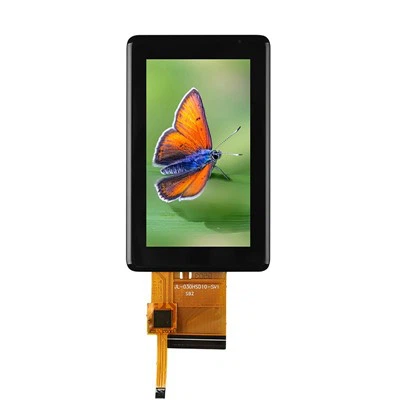
Happy tapping, everyone—here’s to glitch-free screens all year round.
Touch Panel References
- "Capacitive Touch Screen Driver Best Practices," Touch Technology Association, 2023.
- "Industrial Touch Screen Hardware Compatibility Guide," Industrial Electronics Society, 2022.
- Driver Update Troubleshooting for Human Interface Devices, Microsoft Learn, 2024.
- "Linux Touch Screen Driver Deployment for Kiosk Systems," Open Source Touch Consortium, 2023.
Shenzhen Mingqi Photoelectric Co., Ltd.
We’re well-known as one of the leading bar type capacitive touch screen manufacturers and suppliers in China, featured by quality products and good price. Please rest assured to buy bulk customized bar type capacitive touch screen from our factory. Welcome to view our website for more information.
Address: 3rd Floor, Building A, Fufang Science and Technology Park, Xintian Community, Fuhai Street, Baoan District, Shenzhen, Guangdong
E-mail: mingqisales@gmail.com
WebSite: https://www.mq-screen.com/
